


THE GOOGLE OFFICE SUITE (GOS)
PRACTICAL EXAMPLES
NOTE: Underlined items are links!
GOOGLE DOCS
Reflection Portfolios (Source: Beau)
(Source: Beau)
In-Class Back Channel
Collaborative Brainstorming/Writing
Formative Feedback
Docs Skills Pre/Post Test (Source: Beau)
GOOGLE SHEETS
GOOGLE SLIDES
Embedded Discussion (using comments)
(Source: Beau)
Embedded Presentation Quiz (PeakDeck)
Class Directory (Source: Beau)
Interactive Game (Source: Eric Curts)
** must enable "editor" privileges **
Interactive Shared Slides
Shared Activity Board
GOOGLE FORMS
Quizzes and Exams (Source: Beau)
Project Sign-Up Sheet
Status Reports
Opinion / Reaction Surveys
Pre/Post Class Assessment (Source: Beau)
New Vocabulary Collector (for Anki)
(Source: Beau)
Homework / Formal Absence Dropbox
(Source: Beau)
(Miller, 2019)


WHAT IS IT?
The Google Office Suite (GOS) is a practical collection of web applications (Docs, Sheets, Slides, and Forms) that collectively form an integrated cloud-based office suite. They promote 21C skills, especially collaboration and communication, by enabling users to create, share, and comment on multimodal documents with embedded audio, video, and images. This affords skilled educators the ability to design engaging, interactive, and gamified activities as “the collaborative nature of Google tools can be easily integrated into active learning” (Park & Suh, 2018, para. 3).
Lessons can also be designed to promote critical thinking and develop students who are growth-minded and citizenship conscious. Additionally, the plethora of add-ons to extend functionality (e.g. WordClouds, PearDeck) help teachers design and distribute interactive formative and summative tasks and evaluations and also promote problem-solving or challenge students to work on solving problems and think critically in an online environment.

WHY IS IT USEFUL?
The GOS is a great tool for students to construct and share knowledge from their own experiences and to practice 21C skills like critical thinking, communication, collaboration, and creativity. (Park & Suh, 2018). It also offers numerous affordances to teachers by creating a situated online workspace for students, serving as a medium for formative feedback, and acting as a one-stop-shop for assessment and evaluation tools. The tools can be used to transform or enhance learning according to the needs of the educator and the students.
Flipped classrooms and project-based learning (PBL) can be used alongside the GOS very well. The key is to look for technological-pedagogical convergences so educators can bring their teaching to new heights and make learning transfer lasting and memorable (Mishra & Koehler, 2006).
Students also benefit from the use of these tools both in and out of class, as they are able to collaborate and communicate with their teammates, design and share multimodal compositions, and receive valuable formative feedback from their teachers. The World Economic Forum (2020) identified a skills gap of in-demand skills including self-management, problem-solving, critical thinking and analysis, active learning, and resilience. Students with these skills will succeed in this new digital economy and learning to use this cloud office suite is a big first step in that direction.
Google's commitment to digital education can be seen through its Google Fundamentals Training program which offers educators more advanced training on how to use their software to help students in the classroom. If you want to learn more about how you can use Google products more in your classroom, please click the link below!

BEST PRACTICES
In my experience, it is ideal for teachers to pre/post test students’ computer skills to ensure they are becoming competent with the user interface (UI). Although Google designs the user experience (UX) with the user in mind (Google, 2018), it may take some students more time to adapt. One UX benefit for ESL students that removes a significant learning barrier is that menus use their device's localized language settings.
It is also important for educators to demonstrate the way to use these tools in a project setting by preparing templates and explaining their applicability in certain scenarios This reduces barriers for success and empowers students to make choices about their own learning. would be advantageous for learners. For example, a Gantt chart will be new to many students, so a video demonstration would be helpful for learners to use it effectively in their projects.
IN-CLASS APPLICATIONS
If you want to use some of these ideas in your class, please check out the examples at the top of this page or look at the references section to get some more ideas!
I have been using the GOS for a few years now and it's really helped me to manage my relationship with my students and to deliver exciting interactive content. I especially love using Google Forms to survey my students and get their opinions about the class, but also to see what they're struggling with and looking for ways I can help them!
I hope you find something useful on this site to use in your own classroom!
WHERE TO START?
Video resources to help you get started
** CItation in the "References" **

Google’s Design Philosophy and UX Culture
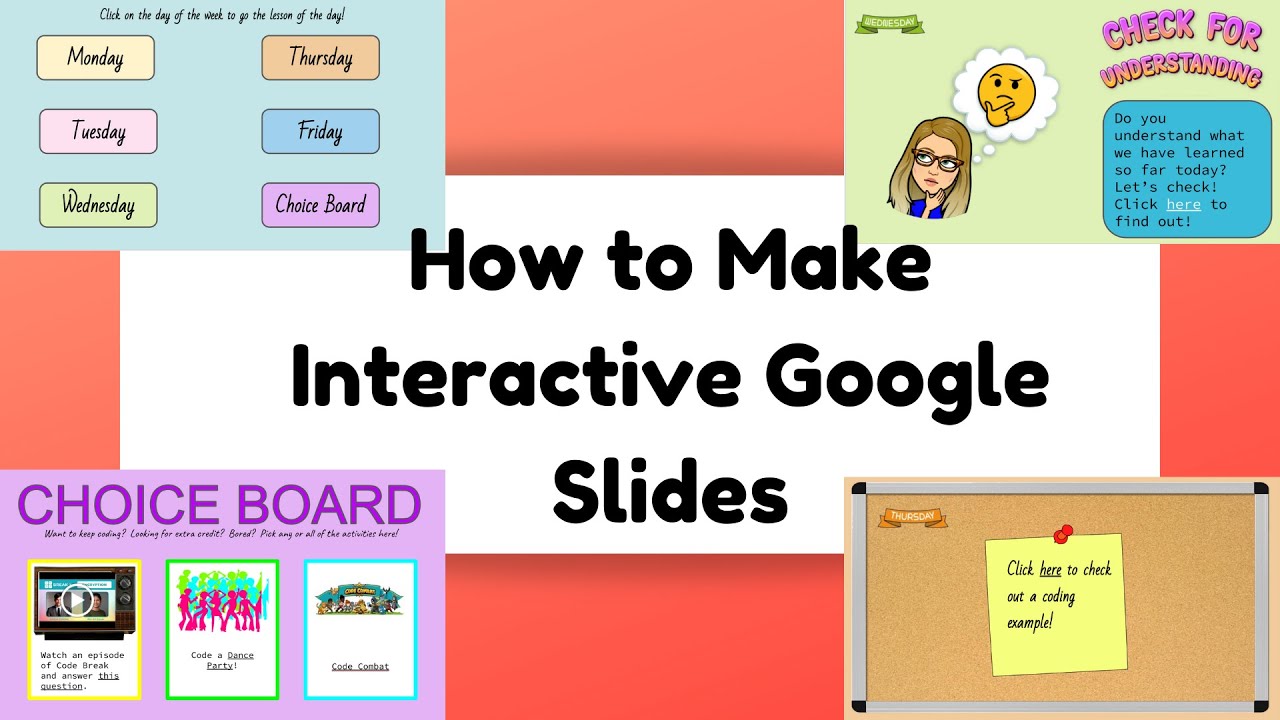
How to Make INTERACTIVE Google Slides (All the Basics & Then Some!)
